Show a discount code on the Shopify Thank you page (no scripts)
Three ways to put a code on the Thank you page without scripts: Checkout Blocks text, an app that issues codes, or Afterglow's referral block.
You can show a discount code on the Thank you page without scripts. Add Shopify’s free Checkout Blocks app and type a code into a static content block, install an app that creates the code for you, or use Afterglow’s referral block, which can show one fixed code or a unique code per order. Whichever you choose, create the discount in Shopify first, then put the code on the page.
Why not a script: on the new Thank you and Order status pages, Shopify does not support additional scripts for tracking or page customizations, so an old-style code snippet will not run there. Everything below uses blocks instead.
Create the discount code in Shopify first
A code has to exist in your Shopify admin before a customer can redeem it. Go to Discounts, click Create discount, then choose Amount off products or Amount off orders and the Discount code method.
While you create it, Shopify lets you set:
- Maximum discount uses: check Limit number of times this discount can be used in total, Limit to one per customer, or both. One use per customer is tracked by email address or phone number.
- Active dates: a start date and an optional end date. If you do not set an end date, the code does not expire.
- Minimum requirements: a minimum purchase amount or a minimum quantity of items. A minimum purchase amount counts product prices only; shipping and taxes do not count.
- Combinations: whether the code can combine with other discount codes, by discount class.
- Eligibility: all customers, specific customers, customer segments, or markets.
A discount code can apply to up to 100 specific customers, products and variants. Your store can hold up to 20,000,000 unique discount codes in total.
Option 1: A static code in Checkout Blocks (free)
Shopify’s own Checkout Blocks app is free. On the Basic plan or higher you can create a Static content block and place it on your Thank you and Order status pages, and nowhere else in checkout. You type the same code into the block for every customer to see.
- Install Checkout Blocks from the Shopify App Store.
- Go to Settings › Checkout, then in the Configurations section click Edit next to your checkout configuration.
- Choose Thank you in the page selector.
- Click Add block, then choose Static content under Checkout Blocks.
- Set the Content type, then put your message and the code in the Title and Description fields.
- Click Save.
This is free, and it’s the simplest option when every customer should see the same code. It’s the wrong choice if you want a different code for each customer.
Option 2: An app that issues a code
If you need a fresh code per customer or per order, look for an app. The Shopify App Store has a Discount apps category with apps that create and manage discount codes, and apps can add a block to your Thank you page. Before you install one, check that it supports the Thank you page as an app block and not only the checkout.
This is worth doing because a static code is the same for every customer. Shopify checks a code’s eligibility, minimum requirements, combinations and active dates, but a code open to all customers, with no total-use limit and no end date, keeps working for anyone who has it until you click Deactivate. A code limited to one use in total stops after one redemption, even if someone passes it on. One use per customer doesn’t do that: a different email address or phone number can still redeem it.
Option 3: Afterglow’s referral block
Afterglow’s Referral & discount block shows a code on the Thank you page, and on the Order status page if you add the app block there too. It needs Afterglow’s Pro plan at $49/month. Paid Afterglow plans have a 14-day free trial.
Open Blocks › Referral & discount › Manage and choose one of two modes:
- A fixed code. Type the code you created in Shopify into the Discount code field. Every customer sees the same code, and the block adds the line “Share it with a friend.”
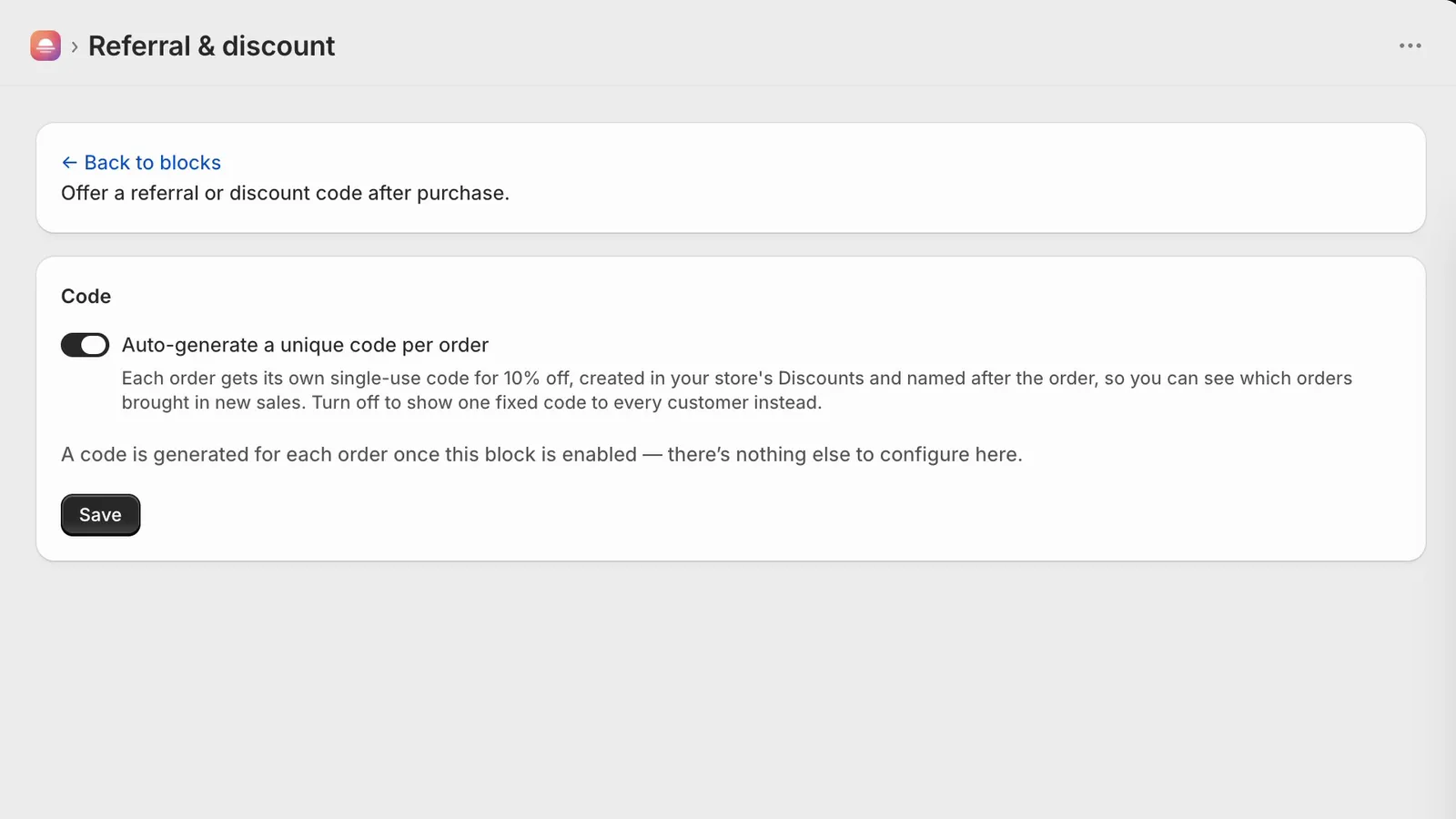
- One code per order. Turn on Auto-generate a unique code per order. Afterglow creates a new 10% off code for each order, in your store’s Discounts list, named after the order so you can trace it back. Each code is limited to one use in total and one use per customer. The shopper sees the code with the line “Share it with a friend. It gives them 10% off one order.”
The Thank you page can load before Shopify has finished creating the order, so in the unique-code mode the code may appear a moment late: the extension retries a few times, four seconds apart, until the order exists and the code is ready.
One limitation: this is a post-purchase code, not a full referral or loyalty program. Afterglow does not track who shared the code and does not reward the person who shared it, and in the unique-code mode every code is 10% off one order.
Which option fits
- One code for everyone, and the simplest setup: Checkout Blocks static content.
- A unique code per customer or order, without Afterglow: an app that issues discount codes.
- A unique code per order, created in your Shopify Discounts automatically: Afterglow’s referral block, on the Pro plan.
If you also want a survey or a custom message on the same page, see How to add Afterglow to your Thank you and Order status pages.
Sources
- Discount codes (Shopify Help Center), checked October 11, 2026
- Amount off discounts (Shopify Help Center), checked October 11, 2026
- Discount codes FAQ (Shopify Help Center), checked October 11, 2026
- Managing and editing your discounts (Shopify Help Center), checked October 11, 2026
- Checkout Blocks app (Shopify Help Center), checked October 11, 2026
- Discount apps (Shopify App Store), checked October 11, 2026
- Static content blocks (Shopify Help Center), checked October 11, 2026
- Customization options for Thank you and Order status pages (Shopify Help Center), checked October 11, 2026
- Customizing your checkout and customer accounts with apps (Shopify Help Center), checked October 11, 2026
- Reviewing and replacing additional scripts on your Thank you and Order status pages (Shopify Help Center), checked October 11, 2026