Ask "How did you hear about us?" on your Shopify Thank you page
How to word a one-question attribution survey for your Shopify Thank you page, choose answer options, avoid bias, and read the results.
Ask one multiple-choice question with five or six options plus Other, and put it on your Thank you page as an app block. Leave it skippable, then compare what customers say against Shopify’s own marketing reports before you move budget.
Why the Thank you page
The Thank you page displays once, right after a customer completes checkout, and they cannot come back to it. The confirmation email links to the Order status page instead, which customers can revisit. It’s the moment right after payment, while the order confirmation is on screen, and Shopify’s developer docs list survey requests as a standard use for this page.
Since the August 26, 2026 upgrade, content on that page comes from app blocks placed in the checkout and accounts editor, not from scripts. If your survey vanished in that change, read why the Thank you page survey disappeared after the upgrade. The clicks themselves are covered in adding blocks to the Thank you and Order status pages.
Wording the question
- One question is enough. Every extra question on a page a customer sees once costs you answers.
- Use words customers use. “How did you hear about us?” is plain and works. Avoid “Which ad did you click?”, which assumes they clicked an ad and asks them to remember something they may not have noticed.
- Anchor it to this purchase. “How did you first hear about us?” pulls in a channel from two years ago. If you want to know what brought in this order, ask about today.
- Do not fold two questions into one. “How did you hear about us and what almost stopped you from buying?” gets you one unusable answer.
Choosing the answer options
Five or six options, plus Other.
- Keep the list short. Fewer options are faster to answer and easier to read back. Afterglow allows at most 7 options per question and needs at least 2, a reasonable frame if you build your own.
- Always include Other. Without it, customers pick the nearest wrong answer, and your data tilts without you seeing it.
- Name channels the way shoppers do. “Google or another search engine” beats “Paid search / SEM”. “Friend or family” beats “Referral program”.
- Keep the order stable. The order of options can nudge answers, so pick an order and leave it. If you do reorder, note the date, because the change can show up in the results.
- Merge the long tail. Channels that return two answers a month tell you nothing. Fold them into Other, or add a follow-up short-text question.
One structural limit to plan around: a multiple-choice question with a single selectable answer forces a multi-touch journey into one box. A customer who saw an Instagram post, searched Google, then clicked an email can only pick one. Decide whether you want first touch or last touch, and word the question to match. Then read your survey next to Shopify’s attribution models instead of treating either as the truth.
Making it optional
Make the question skippable. Shoppers can ignore an Afterglow survey block entirely and still see their order confirmation; the block does not gate anything. Pressing Submit with nothing filled in is rejected, so empty answers do not land in your export as blank rows.
A required question turns a thank-you moment into a form on a page the customer sees once. You won’t get an answer from everyone, and that’s fine.
Reading the answers
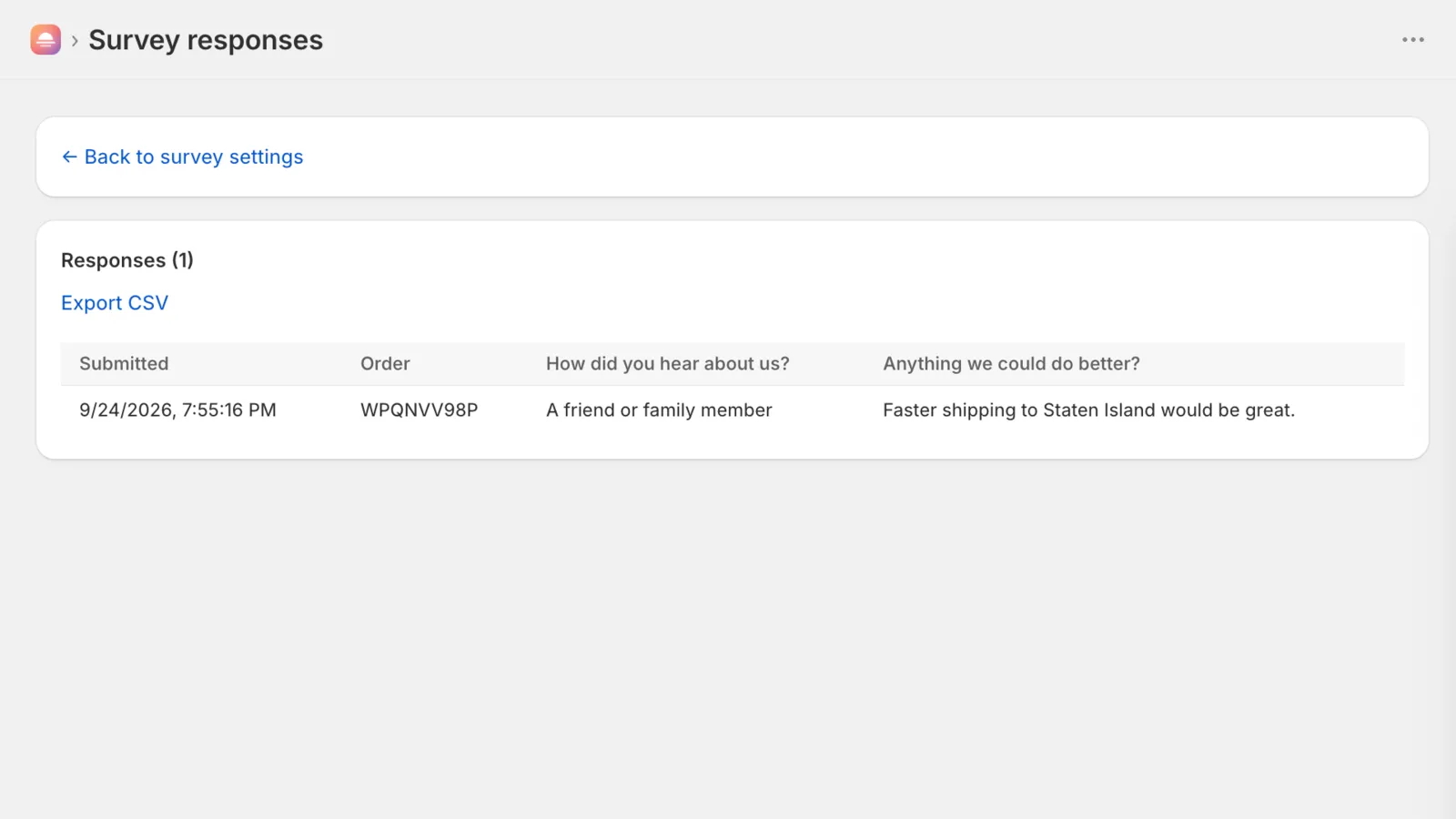
In Afterglow, the responses page lists every answer with its submitted date and order name, and Export CSV downloads one row per response, with a column per question plus Submitted at, Order and Customer ID.
Put that next to what Shopify already attributes:
- Go to Analytics › Reports, filter the Category to Marketing, and you get reports including Performance by marketing channel, Performance by marketing campaign, Sales attributed to marketing and Sessions attributed to marketing campaigns.
- On the Growth page, Top channel performance shows your top five marketing channels by sales, sessions, orders, conversion rate, average order value, return on ad spend, clickthrough rate and cost per acquisition. Its reporting is based on your UTM parameters and connected app activities.
- When a report has a sales metric and a marketing dimension, an Attribution menu appears with five models: last non-direct click, last click, first click, any click and linear. Last click is the default.
- An order’s referrer source is one of Direct, Search, Email, Social or Unknown. When Shopify can’t tell where a visit came from (for example, Do Not Track is on, a proxy or firewall blocks referrer data, or the link was a shortened URL), the referrer name shows as N/A. Those are the orders a self-reported answer can fill in.
- Attribution forgets. If a visitor does not buy within 30 days of a session, the first interaction referrer resets to whatever comes next, and after an order the next referrer counts as a first interaction. A customer who heard about you from a friend a year ago is invisible in these reports and visible in your survey.
Read the two side by side. Where your survey says friend or family and Shopify says Direct, the survey is telling you something the reports cannot. Where your survey says Instagram and Shopify attributes the sale to a Google click, you are seeing the difference between what someone remembers and what they clicked last. Neither number is wrong.
Give it volume before you act. A week of answers on a small store is a handful of rows, and a handful of rows is an anecdote. Wait until each option has enough answers that a change would move the ranking.
Starting before Black Friday and Cyber Monday
Black Friday falls on November 27, 2026, and Cyber Monday on November 30, 2026. Holiday weeks don’t look like ordinary ones, so you want a baseline from ordinary weeks first.
Turning the question on in October gives you ordinary-week answers to compare against. When the holiday spike lands, you can see if the extra orders came from a channel that was already working or from a new one, and set your 2027 budget from that instead of from the holiday numbers alone. Keep it running after the weekend, because the mix changes again.
Doing this with Afterglow
The Afterglow home page in your admin opens with a setup checklist. Its first step is Turn on a post-purchase survey., described as Start with a simple attribution question. You can edit it later. The button turns the survey block on, and creates the question when your survey has none yet. It seeds one multiple-choice question, How did you hear about us?, with these options, in this order:
- Google or another search engine
- TikTok
- YouTube
- Friend or family
- Other
That is 7 options, the maximum the block allows. If your survey already has questions, the button leaves them alone and only turns the block on.
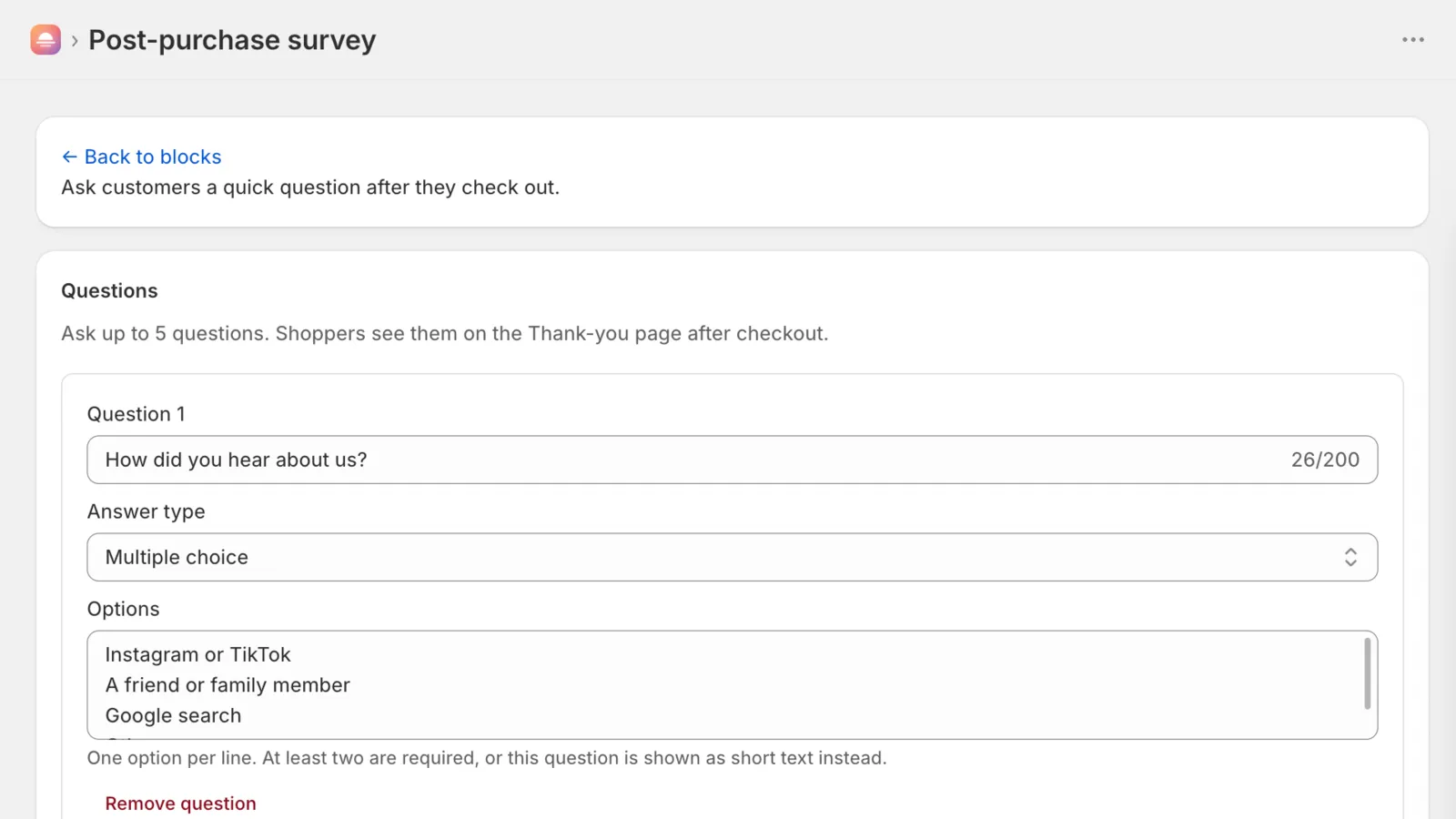
Edit the list to match your channels. You can add up to 5 questions, so a second Short text question such as “Anything else you want to tell us?” catches what Other cannot: a choice question records only the option text, with no free-text box behind it. Question text runs to 200 characters, an option to 80, and a shopper’s written answer to 500.
The survey is on the Free plan, which collects up to 100 responses a month. At the cap, the survey is hidden from the Thank you page until the count resets on the first day of the next month, UTC, and submissions in the meantime are not stored. Starter is $9 a month for unlimited responses, Growth is $29 and adds order tracking, Pro is $49 and adds referral discount codes, and paid plans have a 14-day free trial.
One limit to plan around: the survey shows on the Thank you page only. Shoppers who return later through the link in their confirmation email never see it, so your answers come only from that one-time page.
Sources
- Upgrading and replacing your Thank you and Order status pages (Shopify Help Center), checked October 11, 2026
- Non-Plus - Upgrading and replacing your Thank you and Order status pages (Shopify Help Center), checked October 11, 2026
- Using the checkout and accounts editor (Shopify Help Center), checked October 11, 2026
- Marketing reports (Shopify Help Center), checked October 11, 2026
- Measuring marketing performance (Shopify Help Center), checked October 11, 2026
- Retail Holidays Calendar 2026: Key Dates & Shopping Events (shopify.com), checked October 11, 2026
- About Thank you and Order status page customization (shopify.dev), checked October 11, 2026